
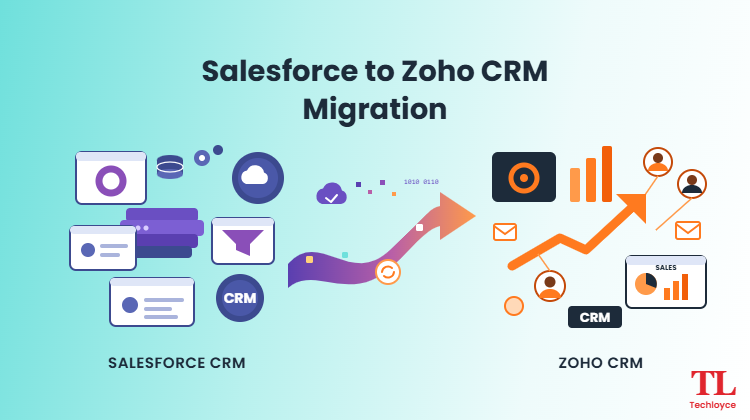
Businesses are constantly on the look out for the best platforms that can support the scalability and growth of their organizations. A well structured Customer Relationship Management System does exactly that. However, changing your setup from one CRM to another for maximum productivity is a common best-practice. Many organizations are looking to Zoho CRM for their management needs.
But making such a transition is no easy task. Especially if you are migrating from legacy systems such as Salesforce. That’s where we step in. Keep reading to understand the complete way to migrate Salesforce to Zoho CRM without any hurdles.
Why Businesses Switch from Salesforce to Zoho CRM
For small to medium sized businesses and mid-market enterprises, picking the correct CRM can make or break their organizational structure. For their needs, a CRM that is user-friendly, has advanced modules for all their workflows, and that is pocket-friendly is always a top priority. Salesforce, while a primary choice by many, becomes tough to maintain. It’s overly complex, has limited customization capabilities, and cannot be efficiently put into action without putting significant investment into an advanced IT system. There is also a steep learning curve to it. So not everyone goes hands-on immediately.
Zoho, on the other hand, addresses such concerns by offering many integrations which are adjusted to the needs of a business. These include basic management options such as Zoho books, billing, and subscription integrations, as well as more detailed Zoho CRM options. Additionally, there are no hidden high costs or excessive IT dependency associated with it. It also offers businesses the capacity to scale and expand with flexibility. So the CRM structure is accommodated according to any user-growth or expansion.
Salesforce vs. Zoho CRM: Quick Comparison
| Factor | Salesforce CRM | Zoho CRM |
| Pricing | Generally costs more. There are premium features and add-ons that cost extra. | Plans for small and growing businesses at low cost. The price depends on your needs and use of service. |
| Customization | It supports complex requirements such as custom objects, fields, workflows and Apex code. | Using Zoho Creator, provides custom modules, workflows, layouts and fields with extensions. |
| Integrations | Connects with third-party apps through App-exchange, APIs and integration platforms. | Integrates with third-party apps as well as Zoho Books, Zoho Campaigns, and third party apps through APIs and other available tools. |
| Support | Offers support, training and documentation, and a broad network of partners. | Provides documentation, resources for training, and support options depending on the plan and the region. |
| Scalability | Suits businesses that have complex operations, advanced needs for customization and large teams. | Adaptable CRM features and a Zoho environment that helps out growing businesses. |
Making a choice between Salesforce and Zoho CRM comes down to many things like the budget, growth plans, and how work is taking place. Before migrating, review the migration checklist and decide which features your team needs to keep, replace or upgrade. In doing so, you can prevent any gaps during the transition process.
Pre-migration Checklist
The necessities you should understand before you take the first steps.
Audit data and objects
Gather deep insights into data types such as leads, accounts, contacts, notes, and other attachments to understand where the priorities are. These reviews also include custom objects and fields to see any corresponding salesforce structures that need variants in Zoho CRM. Another layer in this step is to check where the dependencies are: what business sections are interlinked with each other and what are the records included.
Clean and deduplicate
Conduct an audit of pre-existing Salesforce records and make sure any repeated leads, contact information and account-based information is removed. Also make sure to standardize all the data and make sure to correct any and all inaccuracies before migration takes place. Additionally, double check that none of the information is outdated or obsolete. Any such information needs to be archived before data transfers.
Define Scope, timeline, stakeholders
Plan out your Zoho to Salesforce data migration. Identify the records, custom fields, modules, and other attachments that need to be migrated. Establish a timeline for field prep, data mapping, testing, training, and final handoff. Assign responsibilities for export, configuration, testing and approval. And lastly, define a clear criteria for success. These should include accurate record counts and linked relationships. All of which play a part in functioning flows of work.
Back up Your Data
Before you migrate to Zoho CRM, create a backup of your Salesforce records and related files by using the export options available. Maintain safe records ID and other reference information necessary to maintain client relationships. Store the exported files somewhere safe and make sure that they are complete and fully accessible. And, lastly, make sure your Salesforce management system is still present throughout the data migration process. Do not delete it or dismiss its usage until the new setup has been approved.
Step-by-Step Migration Process
The complete step-by-step explanation that covers all the basics on how to shift from Salesforce to Zoho CRM.
Step 1: Export Data from Salesforce
To start off, download your salesforce data. Essentially, that means every single document that is important for your business to keep. Salesforce provides you with many standard or custom options to export your data. Your export needs will vary depending on what setup you are dealing with. Store all information and IDs so that you can easily relink all the data during the migration process. Also, before you continue, double check that you have digitally secured all the exported files. By doing this, you’ll have a readable copy of all your original information.
Step 2: Map Fields and Modules
Before migrating any of the data, line up all of the Salesforce fields and modules with their corresponding counterparts in Zoho CRM. For example, Zoho Accounts and Contacts is the equivalent variant for Salesforce Accounts and Contacts. But you will need to do some tweaking of the custom fields and sections. When importing, ensure that the field types are not mismatched.
Step 3: Import Zoho CRM
Once your data is ready, migrate all the custom fields, workflows, reports and automations to Zoho CRM. There are a lot of migration options and features that can help you to import files. Select the modules you require and map the incoming data to the columns in Zoho CRM. Planning your imports means protecting them. Take a small sample first, to see if there are any mistakes, then process the rest of the records. Be especially careful when you’re dealing with large datasets or complex CRMs.
Step 4: Rebuild Workflows, Automation, Reports
The rules of Salesforce workflows and automation are sometimes not easy to transfer to the Zoho CRM. The reason being that both platforms have different ways of operating. Look into your old workflows in proper detail and recreate the important steps with the help of Zoho CRM’s workflow CRM. Many things come under this, such as assigning leads, checking up on notifications, and creating performance reports for tasks and sales. You can use the migration process as a chance to get rid of all outdated steps and simplify the unnecessary steps. Try each step to see if it matches your team’s needs and creates the results you want.
Step 5: Test and Validate
Once your Zoho CRM setup is complete and you’ve finished up all the imports, check all the data you have shifted. Your team’s information and tasks need to be completely protected. Plus, go through and compare all records in both Salesforce and Zoho CRM to verify that everything is interlinked correctly. Identify any gaps in information or any mistakes. Carry out basic testing by asking your team members to do common tasks such as assigning leads and updating client deals. But make sure all your issues are taken care of before you completely move towards using Zoho CRM.
Migration Methods: Which Should You Choose
| Migration Method | Best For |
| Zoho’s Native Migration Tool | Businesses shifting basic CRM records through Zoho’s built in migration options. The method suits teams whose data structures and modules meet the tool’s requirements. Before you start, double check which custom fields are supported to avoid unexpected gaps during the migration process. |
| Third party migration tools | Businesses that are working with complicated data sets or multiple systems. These tools can provide a wider selection for shifting data. When choosing a solution for your Salesforce environment, be sure to compare compatibility, protection, price and support. |
| Manual CSV Import | Organizations that are migrating limited records with simple setups and very few customizations. Exporting Salesforce content to CSV format lets teams prepare and create records to import into Zoho CRM. “Field alignment and formatting need to be very carefully looked at so that there are no mistakes. |
| Migration Partner | Companies that handle massive amounts of data, custom automation and complex modules. A migration consultant can help with data preparations, configurations and testing. Professional assistance might increase upfront costs, but it can reduce the work burden on internal teams and help with the management of complicated migration requirements. |
What Data Can (and Can’t) be Migrated
In the discussion of salesforce vs. Zoho CRM, there’s a criteria of Do’s and Dont’s that needs to be addressed. It’s no secret that a majority of the CRM records, such as leads, contacts, accounts, tasks, deals, and notes can be transferred. Plus, custom fields and objects can also be transferred if their systems and data types are aligned with Zoho CRM. Recorded relationships and legacy activities can be preserved. But this varies based on the migration method you use.
But you can’t shift everything from Salesforce directly and in one go. Complex automation work and Apex codes will have to be created from the beginning on Zoho. The functions and features that already exist will also have to be redone or replaced through custom or third-party applications.
Some features specific to Salesforce may not be directly available. In these cases, businesses should evaluate if a different configuration can get the same result. Before migrating, review the pros and cons of your chosen tool for migration. Through this you can identify issues with compatibility and plan necessary adjustments. Plus, you can reduce the risk of missing data or disrupted workflows after the shift.
Common Challenges and How to Avoid Them
CRM migration mistakes are not uncommon. The process can lead to several data inconsistencies and hurdles to the workplace. Being aware of typical issues can help organizations plan for a more smooth transition.
- Data Loss: There is a possibility of skipping records during migration. The most important way to fight that is to take a full backup of the data of Salesforce.
- Duplicate Records: The new system might be cluttered with duplicate logs. It’s best to clean the Salesforce database before migration.
- Field Mismatches: Data types can never be completely the same. Due to this, there are chances that some sections in the Zoho CRM might not match with Salesforce.
- User Resistance: Shifting to a new CRM can be taxing for employees who take time with new workflows. Due to this there can be chances of internal resistance.
- Downtime: Glitches in the system can be common. This can lead the workflow to crash and cause errors in records or sales.
Post Migration Best Practices
Validate Migrated Data
Do a live comparison between Salesforce and Zoho CRM to ensure that all the data has been migrated correctly. Before you go to full reliance on the new system, make sure there isn’t any part of it that’s vague or empty.
Training for Your Team
Help employees to learn how Zoho CRM works. Show them how to do real world activities such as updating deals or checking client interactions. If there are any confusions, encourage your team members to come to you so you can quickly check and fix any data gaps and problems.
Reconnecting Integrations
It’s important for apps to be linked up with Zoho Books for best results. Once that is ensured, test out the automations to check that the data is correctly being passed between the linked systems.
Monitoring Performance
Track system utilization, data quality and employee feedback. Recurring issues should be resolved immediately and configurations need to be adjusted in accordance with all findings.
Cost and Timeline
Migration cost is an important consideration to make in the process of exploring CRM options. The price points, however, differ. For instance, manual CSV imports require minimum spending. But third-party tools and migration add extra to the bill. Businesses should also consider training and rebuilding of automations.
A straightforward migration may take a few days to a few weeks. But complex projects involving custom objects and many different integrations can take several weeks. Cleanup on data and testing can also affect timelines.
Conclusion
In the end, to migrate Salesforce to Zoho CRM is an integral step that should be taken if you are an SMB or a mid-tier business. By changing directions towards Zoho, you can attain several important features such as affordability, scalability, and user-friendliness. These features out-perform Salesforce to maximize growth. So if you’re looking to switch to a CRM without any hidden costs or complexities. Zoho is the way to go.
You don’t have to figure this out alone. Contact Techloyce today and receive detailed consultancy that is the answer to all your Zoho CRM struggles.